> ## Documentation Index
> Fetch the complete documentation index at: https://docs.phare.io/llms.txt
> Use this file to discover all available pages before exploring further.
# Integrate Outgoing Webhooks with Phare
> Receive alerts by webhooks on third-party tools or build your own integration.
Want to build your own custom integration or connect Phare to a tool that isn’t officially supported? Outgoing webhooks are your best friend! They send HTTP callbacks with your alert data to any endpoint you specify, perfect for DIY integrations, logging or connecting to specialized systems.
## Configuration
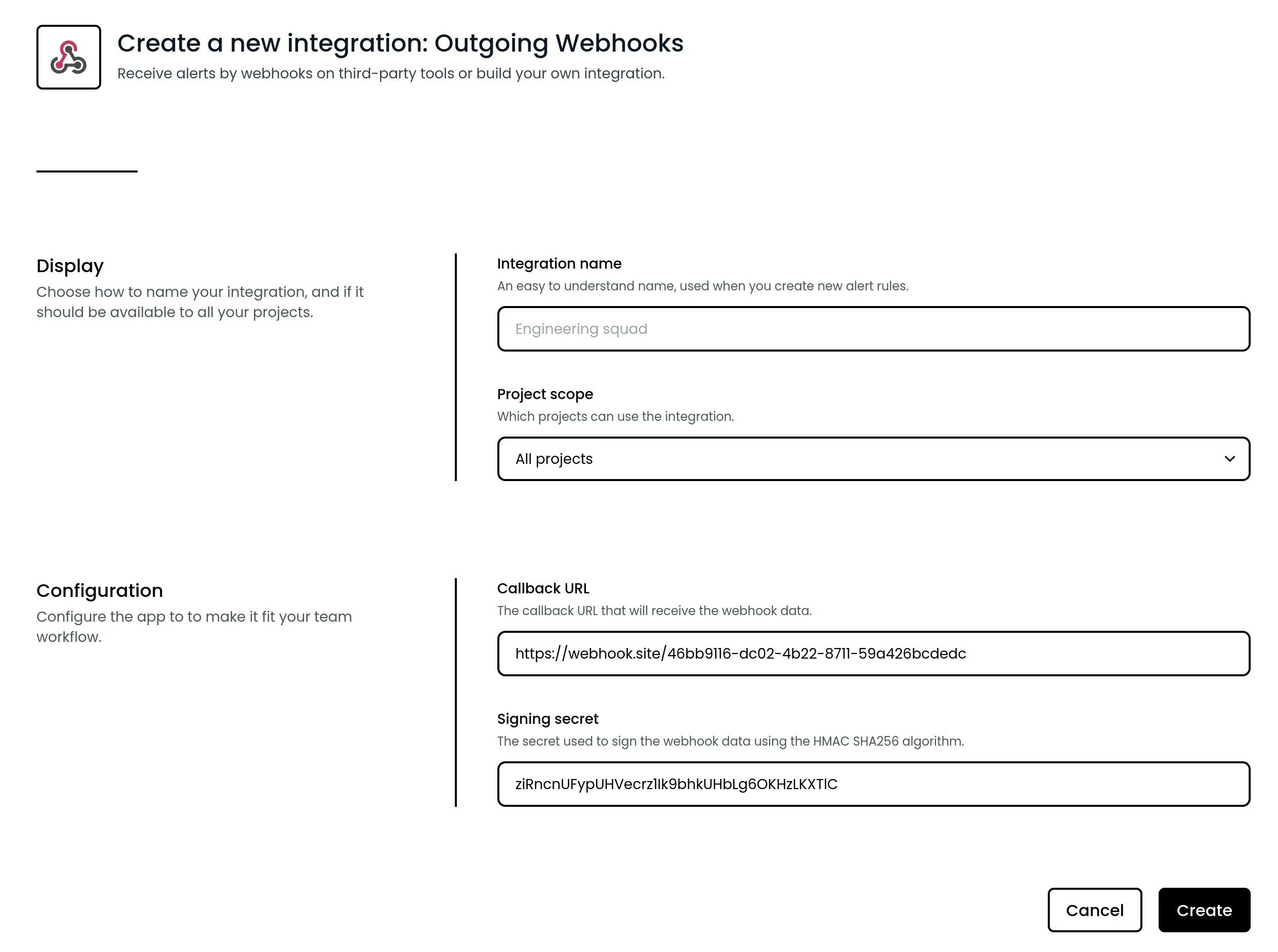
Setting up an outgoing webhook is straightforward, you just need two pieces of information:
* **Callback URL**: Where should the data be sent? This could be an endpoint in your own application or a third-party service that accepts webhooks.
* **Signing secret**: A secret key that proves the data came from Phare and wasn't tampered with along the way.
A secure signing secret is automatically generated for you, but you're welcome to use your own if you prefer.
 ## Using the integration
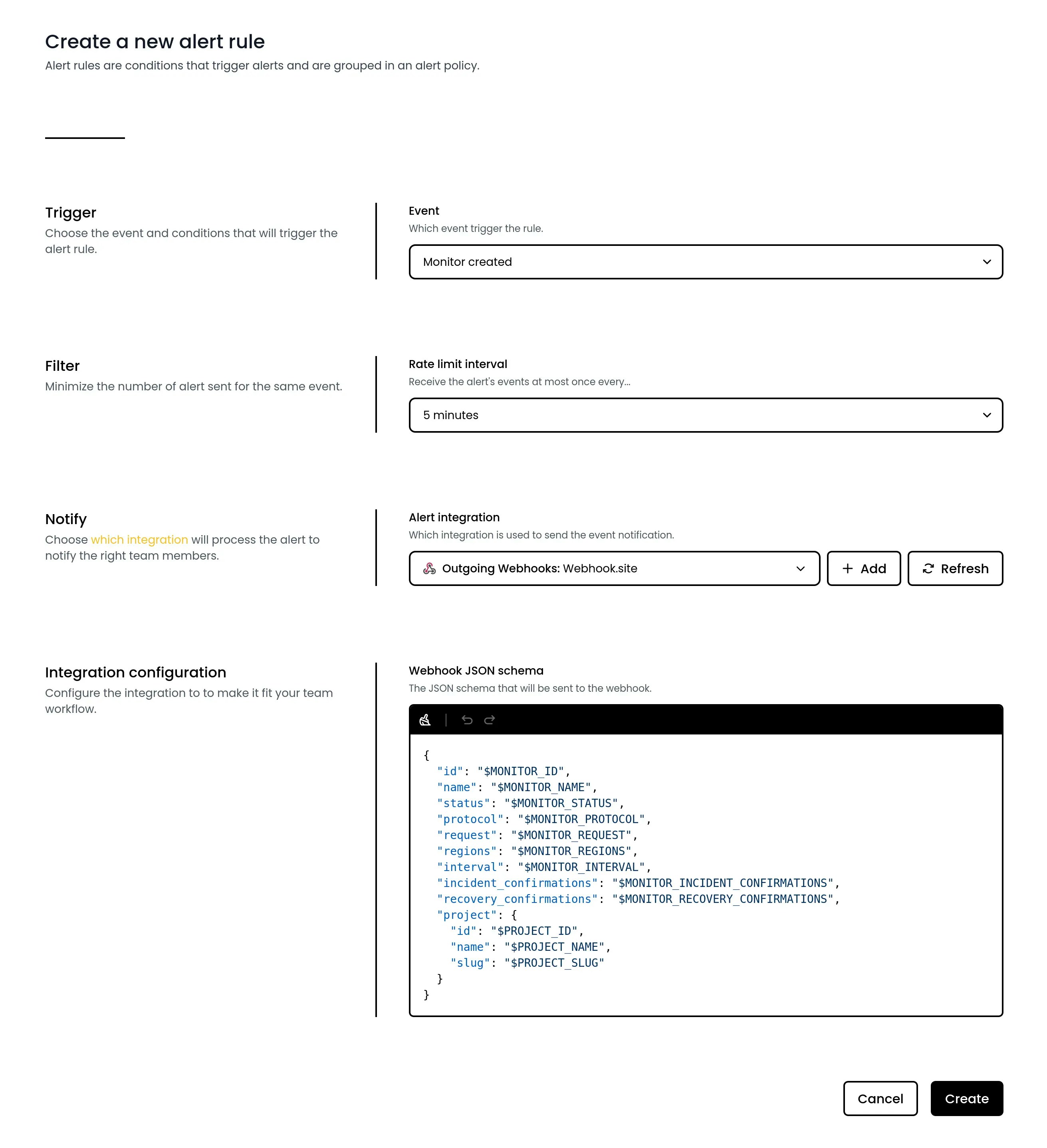
Once your webhook is set up, you can connect it to alert rules in your projects. A default JSON payload based on the alert event you've chosen will be generated, customize it as needed to fit your specific use case.
## Using the integration
Once your webhook is set up, you can connect it to alert rules in your projects. A default JSON payload based on the alert event you've chosen will be generated, customize it as needed to fit your specific use case.
 ## Delivery details
Outgoing webhooks are sent as `POST` requests with a 30-second timeout. Each request includes:
* `Content-Type: application/json`
* `User-Agent: Phare 1.0 (+https://phare.io)`
* `X-Phare-Request-Id`: Unique delivery ID
* `X-Phare-Request-Event`: Alert event key
* `X-Phare-Request-Timestamp`: Unix timestamp
* `X-Phare-Request-Signature`: HMAC-SHA256 signature
The request body is the rendered JSON schema from the Payload customization section below.
## Payload customization
You can customize the payload that will be sent to your webhook endpoint by defining a valid JSON schema with placeholders like `{{ incident.slug }}`. When the webhook is sent, Phare swaps the placeholders with real values.
JSON keys do not support placeholders.
### Example template
```json theme={null}
{
"event": "uptime.monitor.created",
"monitor": {
"id": "{{ monitor.id }}",
"name": "{{ monitor.name }}",
"status": "{{ monitor.status }}",
"protocol": "{{ monitor.protocol }}",
"request": "{{ monitor.request }}",
"regions": "{{ monitor.regions }}",
"interval": "{{ monitor.interval }}",
"incident_confirmations": "{{ monitor.incident_confirmations }}",
"recovery_confirmations": "{{ monitor.recovery_confirmations }}"
},
"project": {
"id": "{{ project.id }}",
"name": "{{ project.name }}",
"slug": "{{ project.slug }}"
}
}
```
### Looping over list of entities
To define a schema for an entity that is part of a list, use `$each` and `$item`. The loop name should match the entity list name you want to iterate, such as `affected_monitors`. In the entity schema, use the `item` variable to access the current item properties.
```json theme={null}
{
"affected_monitors": {
"$each": "affected_monitors",
"$item": {
"id": "{{ item.id }}",
"name": "{{ item.name }}"
}
}
}
```
Nested loops are not currently supported.
### Available entities by event
* `monitor`
* `project`
* `monitor`
* `project`
* `certificate`
* `monitor`
* `project`
* `certificate`
* `monitor`
* `project`
* `incident`
* `project`
* `affected_monitors` (list)
* `incident`
* `project`
* `affected_monitors` (list)
* `incident`
* `project`
* `propagated_monitor` (the newly affected monitor)
* `affected_monitors` (list)
* `incident`
* `project`
* `recovered_monitor` (the recovered monitor)
* `affected_monitors` (list)
* `comment`
* `creator`
* `incident`
* `project`
* `affected_monitors` (list)
* `update`
* `creator`
* `incident`
* `project`
* `affected_monitors` (list)
### Available fields by object
| Field | What it means |
| :------------ | :------------------- |
| `id` | Unique incident ID |
| `slug` | Short incident code |
| `title` | Incident title |
| `description` | Incident description |
| `state` | Current state |
| `status` | Current status |
| `impact` | Impact level |
| Field | What it means |
| :----------------------- | :-------------------------------------------- |
| `id` | Unique monitor ID |
| `name` | Monitor name |
| `status` | Current status |
| `protocol` | Protocol type |
| `request` | Request details |
| `regions` | Regions used for checks |
| `interval` | Check interval (seconds) |
| `incident_confirmations` | Confirmations required to open an incident |
| `recovery_confirmations` | Confirmations required to resolve an incident |
| Field | What it means |
| :----- | :------------ |
| `id` | Project ID |
| `name` | Project name |
| `slug` | Project slug |
| Field | What it means |
| :-------------------------- | :------------------------ |
| `serial_number` | Certificate serial number |
| `subject_common_name` | Common name |
| `subject_alternative_names` | Alternative names |
| `issuer_common_name` | Issuer name |
| `issuer_organization` | Issuer organization |
| `not_before` | Valid from |
| `not_after` | Valid until |
| Field | What it means |
| :-------- | :-------------- |
| `id` | Comment ID |
| `content` | Comment content |
| Field | What it means |
| :-------- | :------------- |
| `id` | Update ID |
| `state` | Update state |
| `content` | Update content |
| Field | What it means |
| :------ | :------------ |
| `type` | Creator type |
| `label` | Display label |
## Webhook security
Trust but verify! Phare outgoing webhooks come with built-in security through HMAC-SHA256 signatures. This ensures the payloads you receive:
1. Actually came from Phare
2. Haven't been tampered with in transit
3. Aren't being replayed from previous requests
To verify a webhook's authenticity, compute the HMAC-SHA256 of this concatenated string:
```text theme={null}
{version}:{timestamp}:{payload}
```
The version is always `v0` (this will be bumped if the algorithm ever changes). You'll find the timestamp in the `X-Phare-Request-Timestamp` header and the signature in the `X-Phare-Request-Signature` header.
You can also use `X-Phare-Request-Id` and `X-Phare-Request-Event` to correlate deliveries.
Here are some code examples to help you implement verification:
```javascript Node.js theme={null}
const crypto = require('crypto');
app.post('/webhook', (req, res) => {
const secret = 'your-signing-secret';
const version = 'v0';
const timestamp = req.headers['x-phare-request-timestamp'];
const signature = req.headers['x-phare-request-signature'];
const payload = version + ':' + timestamp + ':' + JSON.stringify(req.body);
const hash = crypto.createHmac('sha256', secret)
.update(payload)
.digest('hex');
if (hash === signature) {
console.log('Signature verified');
} else {
console.log('Signature verification failed');
}
})
```
```php PHP theme={null}
Pro security tip: Always check that the timestamp isn't too old, it is recommended
to reject a webhook older than 5 minutes to prevent replay attacks.
## Retry policy
Network hiccups happen, which is why Phare outgoing webhooks don't give up easily. If your endpoint doesn't respond with a 2xx status code within 30 seconds, it will be retried up to four times (five attempts total) using an exponential backoff strategy:
1. First attempt: Immediate delivery
2. First retry: After 1 minute
3. Second retry: After 5 minutes
4. Third retry: After 10 minutes
5. Final retry: After 1 hour
This means that from first attempt to last retry, your webhook could arrive anytime within a 1 hour and 18 minute window (including timeouts).
## Debugging
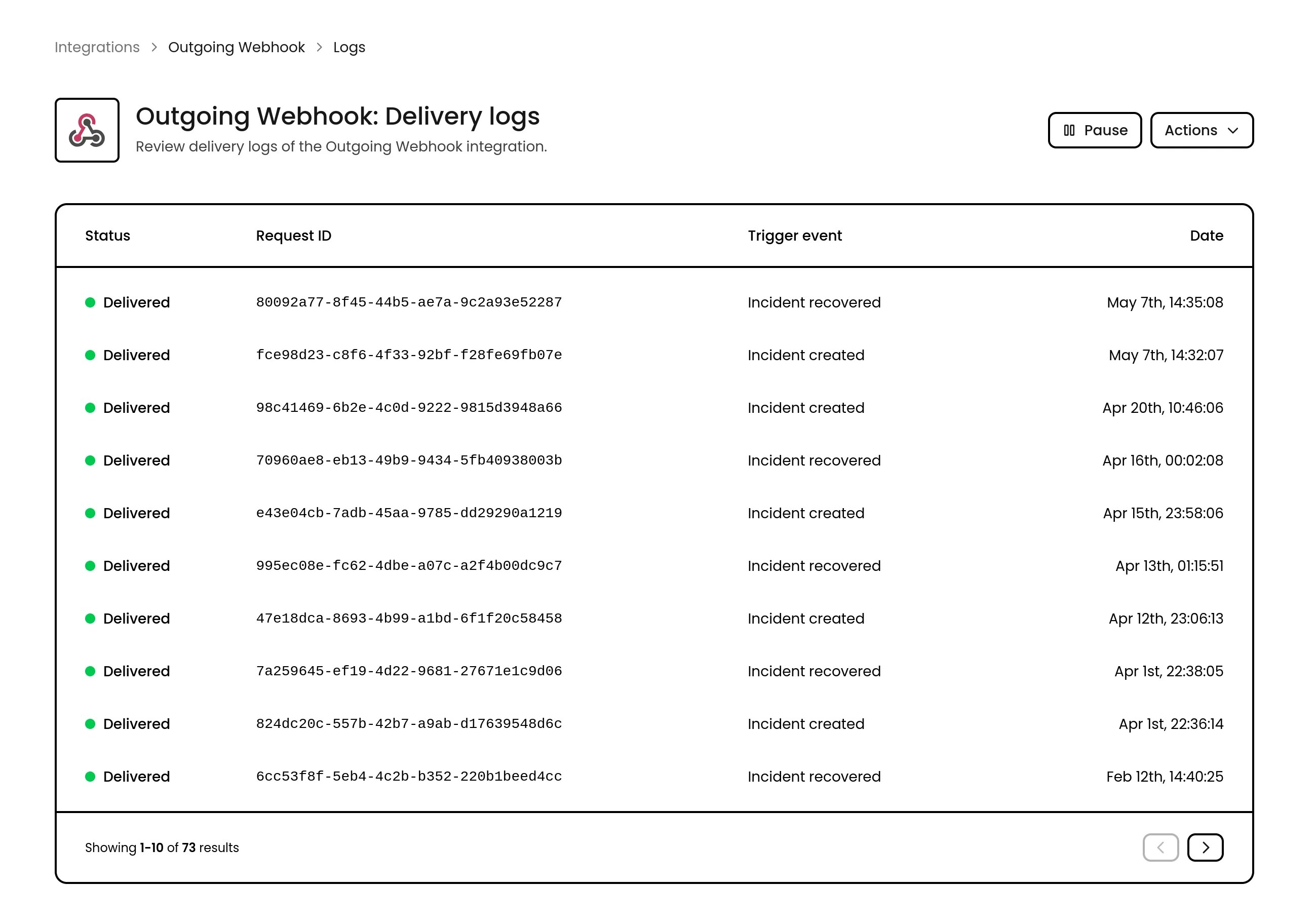
Webhooks not working as expected? Logs are available with the request and response details making troubleshooting a breeze, you only need to click the row you would like to inspect.
## Delivery details
Outgoing webhooks are sent as `POST` requests with a 30-second timeout. Each request includes:
* `Content-Type: application/json`
* `User-Agent: Phare 1.0 (+https://phare.io)`
* `X-Phare-Request-Id`: Unique delivery ID
* `X-Phare-Request-Event`: Alert event key
* `X-Phare-Request-Timestamp`: Unix timestamp
* `X-Phare-Request-Signature`: HMAC-SHA256 signature
The request body is the rendered JSON schema from the Payload customization section below.
## Payload customization
You can customize the payload that will be sent to your webhook endpoint by defining a valid JSON schema with placeholders like `{{ incident.slug }}`. When the webhook is sent, Phare swaps the placeholders with real values.
JSON keys do not support placeholders.
### Example template
```json theme={null}
{
"event": "uptime.monitor.created",
"monitor": {
"id": "{{ monitor.id }}",
"name": "{{ monitor.name }}",
"status": "{{ monitor.status }}",
"protocol": "{{ monitor.protocol }}",
"request": "{{ monitor.request }}",
"regions": "{{ monitor.regions }}",
"interval": "{{ monitor.interval }}",
"incident_confirmations": "{{ monitor.incident_confirmations }}",
"recovery_confirmations": "{{ monitor.recovery_confirmations }}"
},
"project": {
"id": "{{ project.id }}",
"name": "{{ project.name }}",
"slug": "{{ project.slug }}"
}
}
```
### Looping over list of entities
To define a schema for an entity that is part of a list, use `$each` and `$item`. The loop name should match the entity list name you want to iterate, such as `affected_monitors`. In the entity schema, use the `item` variable to access the current item properties.
```json theme={null}
{
"affected_monitors": {
"$each": "affected_monitors",
"$item": {
"id": "{{ item.id }}",
"name": "{{ item.name }}"
}
}
}
```
Nested loops are not currently supported.
### Available entities by event
* `monitor`
* `project`
* `monitor`
* `project`
* `certificate`
* `monitor`
* `project`
* `certificate`
* `monitor`
* `project`
* `incident`
* `project`
* `affected_monitors` (list)
* `incident`
* `project`
* `affected_monitors` (list)
* `incident`
* `project`
* `propagated_monitor` (the newly affected monitor)
* `affected_monitors` (list)
* `incident`
* `project`
* `recovered_monitor` (the recovered monitor)
* `affected_monitors` (list)
* `comment`
* `creator`
* `incident`
* `project`
* `affected_monitors` (list)
* `update`
* `creator`
* `incident`
* `project`
* `affected_monitors` (list)
### Available fields by object
| Field | What it means |
| :------------ | :------------------- |
| `id` | Unique incident ID |
| `slug` | Short incident code |
| `title` | Incident title |
| `description` | Incident description |
| `state` | Current state |
| `status` | Current status |
| `impact` | Impact level |
| Field | What it means |
| :----------------------- | :-------------------------------------------- |
| `id` | Unique monitor ID |
| `name` | Monitor name |
| `status` | Current status |
| `protocol` | Protocol type |
| `request` | Request details |
| `regions` | Regions used for checks |
| `interval` | Check interval (seconds) |
| `incident_confirmations` | Confirmations required to open an incident |
| `recovery_confirmations` | Confirmations required to resolve an incident |
| Field | What it means |
| :----- | :------------ |
| `id` | Project ID |
| `name` | Project name |
| `slug` | Project slug |
| Field | What it means |
| :-------------------------- | :------------------------ |
| `serial_number` | Certificate serial number |
| `subject_common_name` | Common name |
| `subject_alternative_names` | Alternative names |
| `issuer_common_name` | Issuer name |
| `issuer_organization` | Issuer organization |
| `not_before` | Valid from |
| `not_after` | Valid until |
| Field | What it means |
| :-------- | :-------------- |
| `id` | Comment ID |
| `content` | Comment content |
| Field | What it means |
| :-------- | :------------- |
| `id` | Update ID |
| `state` | Update state |
| `content` | Update content |
| Field | What it means |
| :------ | :------------ |
| `type` | Creator type |
| `label` | Display label |
## Webhook security
Trust but verify! Phare outgoing webhooks come with built-in security through HMAC-SHA256 signatures. This ensures the payloads you receive:
1. Actually came from Phare
2. Haven't been tampered with in transit
3. Aren't being replayed from previous requests
To verify a webhook's authenticity, compute the HMAC-SHA256 of this concatenated string:
```text theme={null}
{version}:{timestamp}:{payload}
```
The version is always `v0` (this will be bumped if the algorithm ever changes). You'll find the timestamp in the `X-Phare-Request-Timestamp` header and the signature in the `X-Phare-Request-Signature` header.
You can also use `X-Phare-Request-Id` and `X-Phare-Request-Event` to correlate deliveries.
Here are some code examples to help you implement verification:
```javascript Node.js theme={null}
const crypto = require('crypto');
app.post('/webhook', (req, res) => {
const secret = 'your-signing-secret';
const version = 'v0';
const timestamp = req.headers['x-phare-request-timestamp'];
const signature = req.headers['x-phare-request-signature'];
const payload = version + ':' + timestamp + ':' + JSON.stringify(req.body);
const hash = crypto.createHmac('sha256', secret)
.update(payload)
.digest('hex');
if (hash === signature) {
console.log('Signature verified');
} else {
console.log('Signature verification failed');
}
})
```
```php PHP theme={null}
Pro security tip: Always check that the timestamp isn't too old, it is recommended
to reject a webhook older than 5 minutes to prevent replay attacks.
## Retry policy
Network hiccups happen, which is why Phare outgoing webhooks don't give up easily. If your endpoint doesn't respond with a 2xx status code within 30 seconds, it will be retried up to four times (five attempts total) using an exponential backoff strategy:
1. First attempt: Immediate delivery
2. First retry: After 1 minute
3. Second retry: After 5 minutes
4. Third retry: After 10 minutes
5. Final retry: After 1 hour
This means that from first attempt to last retry, your webhook could arrive anytime within a 1 hour and 18 minute window (including timeouts).
## Debugging
Webhooks not working as expected? Logs are available with the request and response details making troubleshooting a breeze, you only need to click the row you would like to inspect.