> ## Documentation Index
> Fetch the complete documentation index at: https://docs.phare.io/llms.txt
> Use this file to discover all available pages before exploring further.
# User management
> Learn how to manage users and roles in Phare, invite team members, and control project access.
Phare makes collaboration easy by letting you invite as many team members as you need to your organization. Keep things organized by managing access with roles and project scopes, so everyone gets exactly what they need, no more and no less.
## Roles
Phare keeps it simple with three roles: **Owner**, **Admin**, and **Member**. Each comes with its own permission set to help you build the right team structure.
* **Owner**: The organization's founder and primary administrator. Owners have all admin powers plus the ability to delete the organization and demote admins when necessary.
* **Admin**: The trusted lieutenants of your organization. Admins get full access to all resources, can join any project freely, and can promote other users to admin status.
* **Member**: Members have complete access to their assigned projects and can create new projects. They can also invite new members to join the organization, helping your team grow organically.
 ## Accessing projects
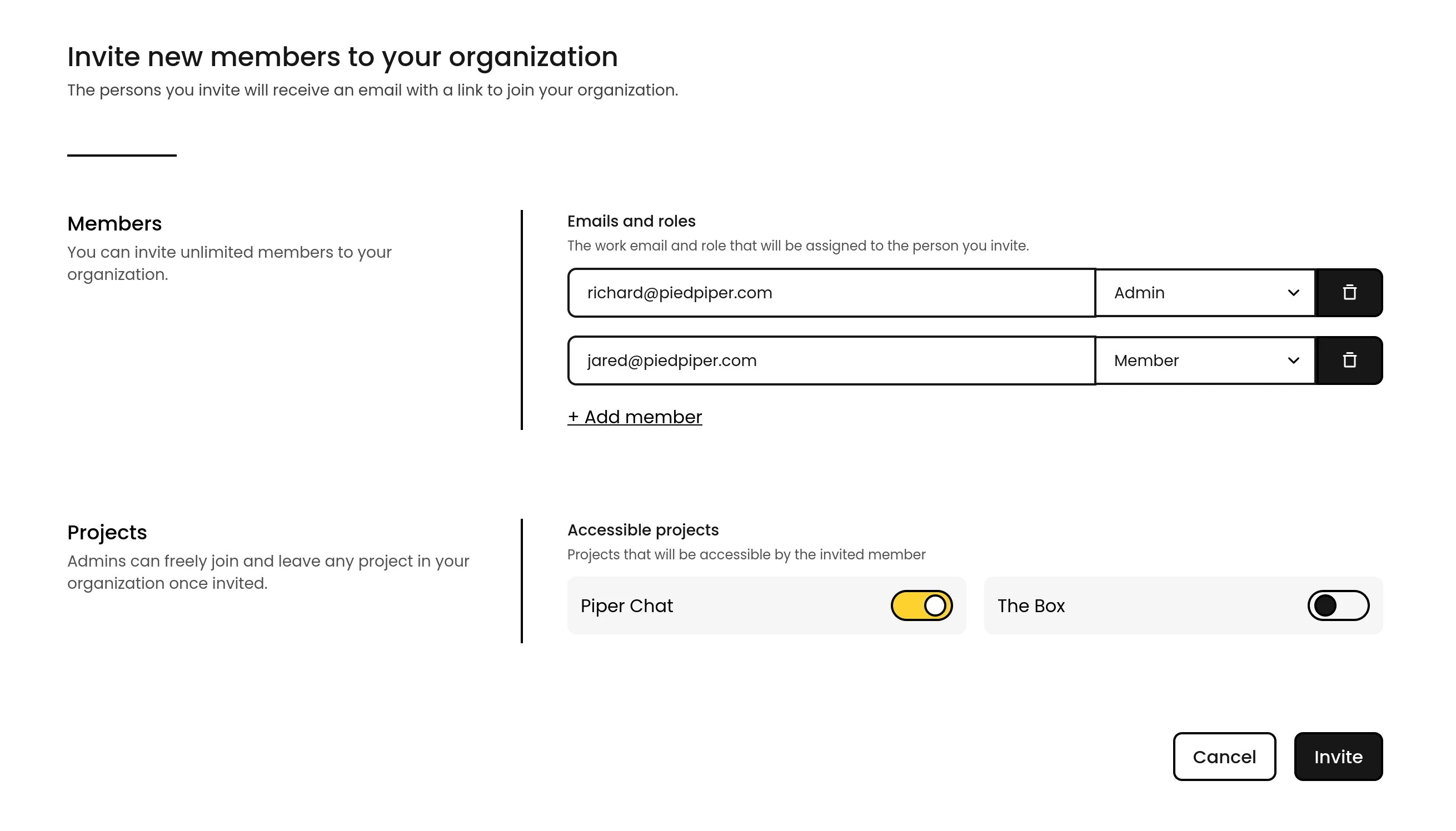
When inviting **Members** to your organization, you can customize which projects they can access. Need to adjust their access later? No problem. You can update permissions anytime as your team's needs evolve.
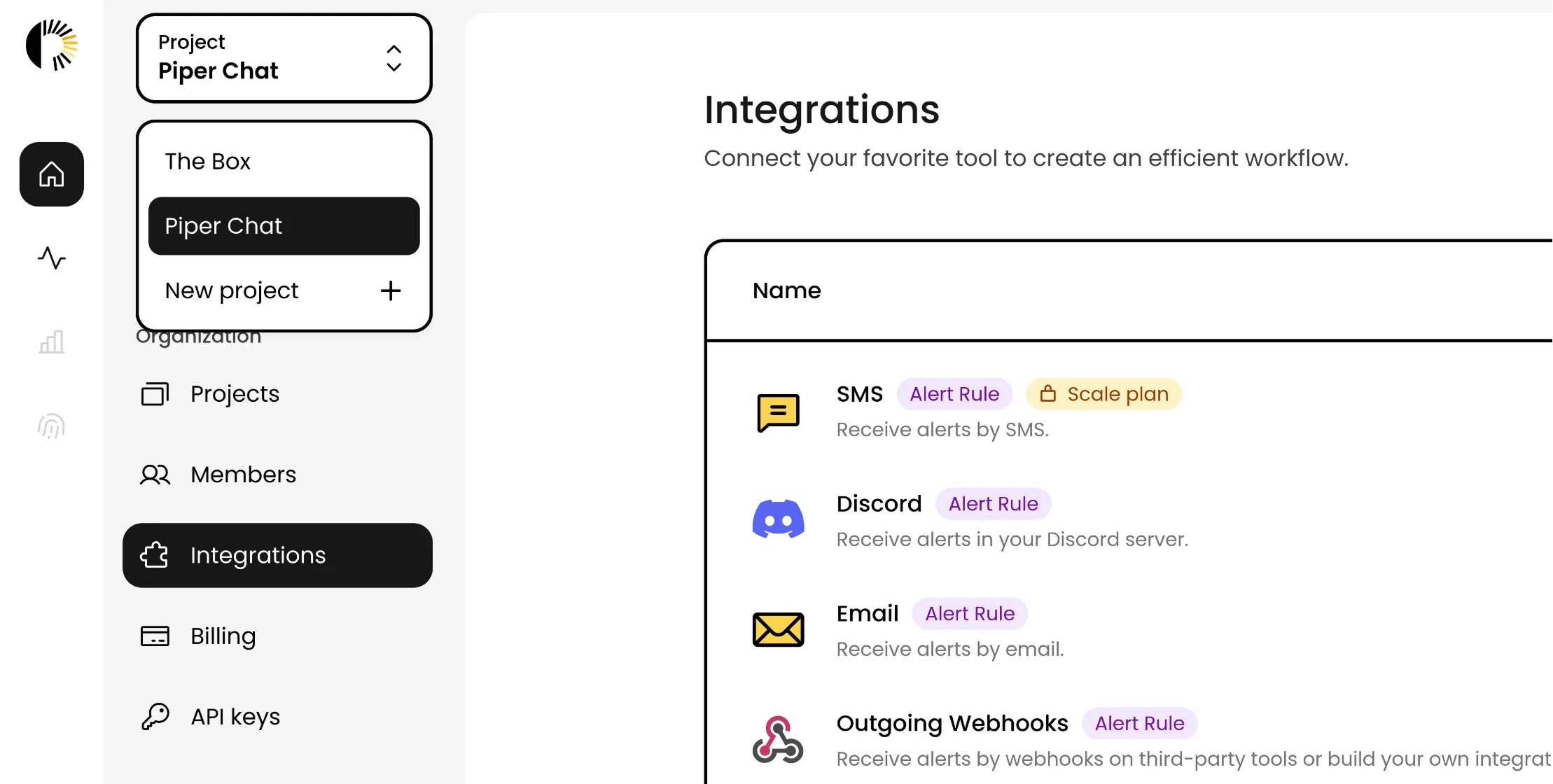
**Admins** and **Owners** can join any project they want, but the project selector only shows the ones they've actively joined. This keep the workspace clean and focused. Other projects can still be modified or deleted from the organization's project page without cluttering the daily view.
## Accessing projects
When inviting **Members** to your organization, you can customize which projects they can access. Need to adjust their access later? No problem. You can update permissions anytime as your team's needs evolve.
**Admins** and **Owners** can join any project they want, but the project selector only shows the ones they've actively joined. This keep the workspace clean and focused. Other projects can still be modified or deleted from the organization's project page without cluttering the daily view.